
LATEST WINDOWS DRIVER

ASIO4ALL Download for Windows 11 & 10

Download ASIO4ALL 2.21 for Windows audio devices. This ASIO4ALL download guide links to the official website, with release details checked against first-party sources on July 16, 2026.

The official download begins after a 15-second source check. JavaScript is required for the countdown.

Official source: asio4all.org Verified July 16, 2026
Official ASIO4ALL 2.21 release artwork
Official ASIO4ALL 2.21 release media. Source: asio4all.org.
DOWNLOAD FACTS

ASIO4ALL latest version download details

This ASIO4ALL download guide checks the installer facts before downloading. These values come from the official download page, release notes, and installer response headers rather than a third-party software catalog.

Software
ASIO4ALL
Latest version
2.21
Release date
June 10, 2026
Installer
ASIO4ALL_2_21.exe
File size
395,984 bytes (about 387 KB)
Minimum OS
Windows 10
Official support
Windows 10 and Windows 11
Price
Free download

The primary button redirects to the verified installer at asio4all.org after a 15-second countdown. ASIO4ALL Download Wiki does not repackage or mirror the executable.

WHAT IT DOES

What is ASIO4ALL?

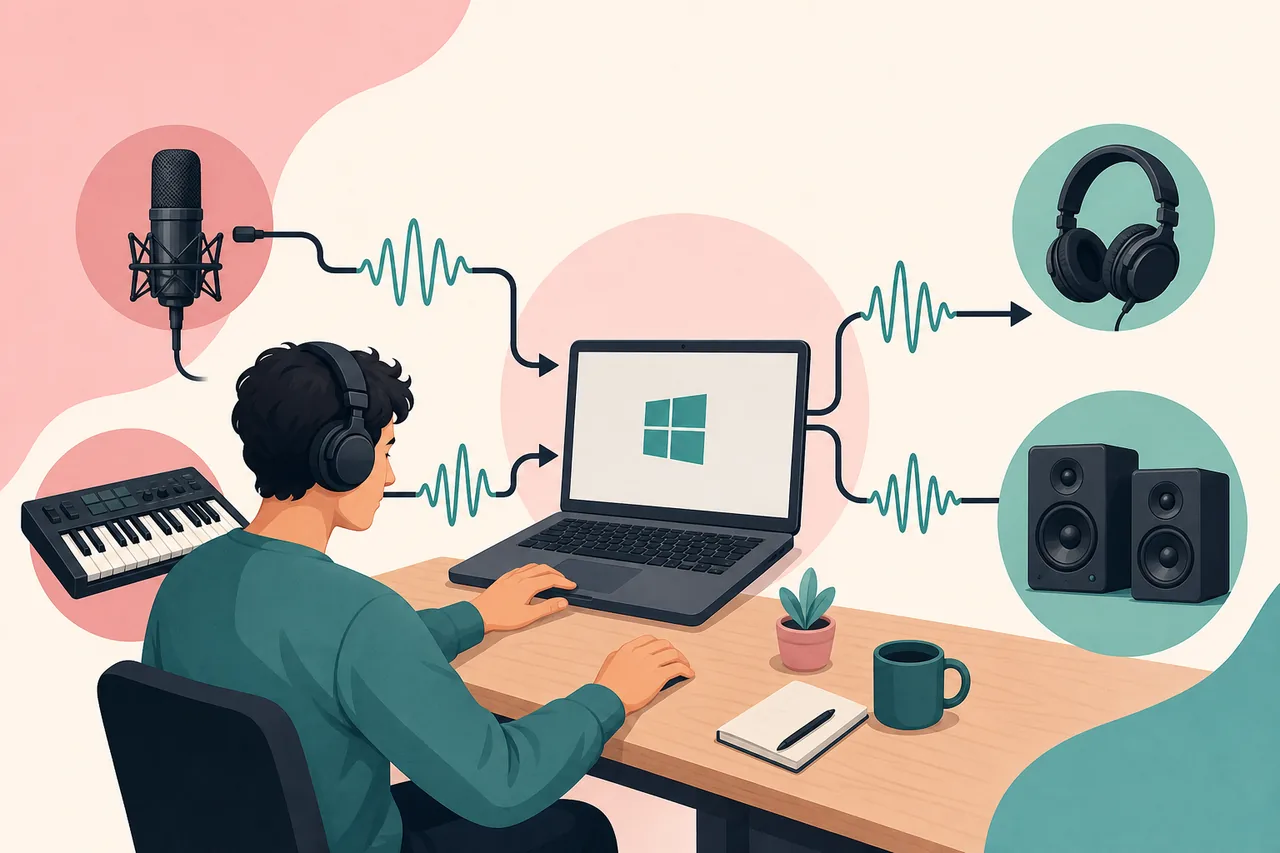
ASIO4ALL is a universal audio driver for Windows. It lets ASIO-capable music software communicate with audio devices that normally use Windows WDM audio drivers. That can give a DAW a smaller audio buffer and lower monitoring latency than a basic shared-mode Windows setup, which is useful when recording vocals, playing a MIDI instrument, monitoring a guitar plugin, or editing time-sensitive audio.

The word universal needs context. ASIO4ALL does not replace the hardware inside a sound card and it does not add professional inputs to a device that lacks them. It presents compatible Windows audio endpoints to the DAW through an ASIO interface. Performance still depends on the device driver, buffer size, sample rate, USB stability, background load, and whether another application is already holding the audio endpoint.

ASIO4ALL is especially useful for built-in laptop audio, consumer USB devices, and older interfaces without a maintained native ASIO driver. If your Focusrite, Steinberg, PreSonus, RME, MOTU, or other audio interface has a current manufacturer ASIO driver, start with that driver. Native drivers usually expose the interface's routing, clock, direct-monitoring, and firmware features more completely.

Quick decision

Use ASIO4ALL when your Windows audio device has no reliable native ASIO option. Use the manufacturer's ASIO driver when the hardware vendor supplies one that works correctly.
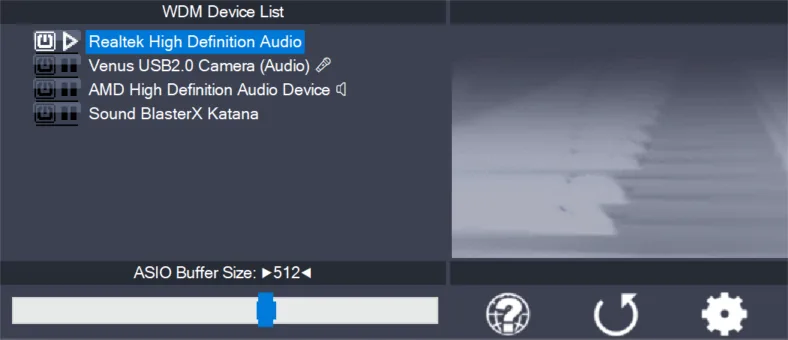

Official ASIO4ALL control panel showing Windows audio devices
The official ASIO4ALL control panel lets you enable endpoints and open advanced settings. Source: official instruction manual.
QUICK START

How to download and install ASIO4ALL

Installation is short, but closing active audio programs first prevents the most common discovery problem. Follow these steps for Windows 11 or Windows 10.

  1. 1

    Close your DAW and audio apps

    Exit FL Studio, Reaper, Ableton Live, Cubase, BandLab, browsers playing audio, and any other program that may be using the device. This gives the installer and the next DAW launch a clean starting point.

  2. 2

    Start the official ASIO4ALL download

    Select the download button on this page. After the 15-second source countdown, your browser opens the verified ASIO4ALL_2_21.exe URL on asio4all.org.

  3. 3

    Run the installer

    Open the downloaded executable, approve the Windows prompt if it identifies the expected installer, read the license terms, and continue through the setup. Version 2.21 always enables Offline Settings, so there is no separate Offline Settings package to select.

  4. 4

    Reopen your DAW

    Start your audio software and open its audio device settings. Choose ASIO4ALL v2 as the driver or device. A complete Windows restart is usually unnecessary; restart only if the freshly installed driver is still missing.

  5. 5

    Choose devices and test a buffer

    Open the ASIO4ALL control panel, enable the input and output you actually need, and begin with a moderate buffer such as 256 samples. Lower it for live monitoring only after playback is stable. Raise it if you hear clicks, gaps, or distortion.

Official ASIO4ALL installer completion screen
Official installer completion screen. Reopen the DAW after setup so the new driver appears in its audio device list.
SYSTEM SUPPORT

ASIO4ALL download compatibility

The current version separates officially supported Windows releases from older systems that may still run it. That distinction matters when choosing a driver for a production machine.

Platform2.21 statusWhat to know
Windows 11Officially supportedRecommended current Windows target. Standard x64 systems are supported.
Windows 10Officially supportedListed as the minimum required OS on the official download page.
Windows 11 ARM64Works with limitsNo native ARM build. Official notes say it generally works; some integrated microphones may need Alternative Buffer Synchronization.
Windows 7 / 8Legacy compatibilityOfficial release notes say 2.21 was confirmed to work, but minor GUI artifacts may appear and these systems are below the stated minimum OS.
macOSNot availableThere is no official ASIO4ALL for Mac. Use macOS Core Audio or the device maker's macOS driver.

The same ASIO4ALL installer covers normal 64-bit Windows use; you do not need a separate file labeled ‘ASIO4ALL 64 bit.’ Avoid websites offering a special Mac edition, patched build, or unrelated ‘online download.’ Those labels do not match the official distribution model.

For Windows 11 on ARM hardware, test the exact input and output before relying on the setup for a session. The 2.21 release notes specifically mention that the Qualcomm Aqstic integrated microphone may require Alternative Buffer Synchronization in the advanced control panel.

DAW SETUP

Use ASIO4ALL with recording software

Downloading the driver is only the first step. The DAW must select ASIO4ALL, the control panel must expose the correct endpoints, and the buffer must fit the task.

FL Studio

Select ASIO4ALL v2, open the panel, enable the intended output, and tune the buffer without confusing it with FL Studio ASIO.

Set up FL Studio

Control panel

Learn what the power icons, advanced view, buffer size, resampling, and device status symbols mean.

Learn the controls

Offline Settings

Open the ASIO4ALL panel before launching a DAW and prepare endpoint choices without downloading another component.

Open Offline Settings

Download safety

Verify the domain, filename, version, and Windows publisher prompt before running any audio driver installer.

Check the source

A low buffer is not automatically better. A 64-sample buffer can feel responsive while recording, but it gives the computer very little time to process plugins. For mixing, 512 or 1024 samples may be more stable because live input latency matters less. Use the smallest setting that remains clean for the current project rather than copying a number from another computer.

If an endpoint shows a red cross or cannot be enabled, close programs that may hold it, disable Windows audio enhancements when they cause conflicts, and make sure the DAW sample rate matches the device. Bluetooth headphones add their own latency and often expose separate playback and microphone profiles, so wired headphones or a dedicated interface are more predictable for recording.

CURRENT RELEASE

What changed in ASIO4ALL 2.21?

ASIO4ALL 2.21 was released on June 10, 2026. The update focuses on USB Audio Class 1 devices, installer behavior, and a simpler settings component. It officially supports Windows 10 and Windows 11 while documenting limited legacy and ARM64 behavior.

The official release notes are the authority for changes. This site summarizes them so users can decide whether the latest driver addresses their setup, but it does not replace the developer's documentation or provide a modified installer.

  • Improved stability with USB Audio Class 1 devices.
  • Improved round-trip latency, especially at a 44.1 kHz sample rate.
  • Removed the Debug installer option that could contribute to crash dumps in poorly coded host applications.
  • Enabled Offline Settings permanently and removed that installer component choice.
  • Documented official Windows 10 and Windows 11 support.
Read the ASIO4ALL version history
COMMON QUESTIONS

ASIO4ALL download FAQ

This ASIO4ALL download guide gives direct answers to questions users ask before and immediately after installing the driver.

Is ASIO4ALL free to download?

Yes. ASIO4ALL is available as a free download. This site sends the download request to the official asio4all.org file instead of hosting a repackaged mirror.

Does ASIO4ALL work on Windows 11?

Yes. Version 2.21 officially supports Windows 11 and Windows 10. The official notes also discuss Windows 11 on ARM64, although there is no native ARM build.

Does ASIO4ALL support 64-bit Windows?

Yes. Use the standard current installer for normal 64-bit Windows 10 and Windows 11 systems. You do not need a separate file from a third-party ‘64-bit download’ page.

Do I need to restart after installing ASIO4ALL?

Usually not. Close and reopen the DAW so it scans the newly installed driver. Restart Windows if ASIO4ALL still does not appear or if an audio endpoint remains locked after all audio apps are closed.

Is there an ASIO4ALL download for Mac?

No. ASIO4ALL is designed for Windows WDM audio. macOS uses Core Audio, so use the built-in Core Audio path or the macOS driver supplied by your audio interface maker. See the ASIO4ALL for Mac explanation.

Should I use ASIO4ALL or my audio interface driver?

Start with the manufacturer's native ASIO driver when it is current and stable. Use ASIO4ALL when the device has only a Windows WDM driver, when you need to test a consumer audio endpoint in an ASIO host, or when a legacy device's native driver is unavailable.

What is ASIO4ALL Offline Settings?

It is a shortcut that opens the ASIO4ALL control panel without requiring an ASIO host to be running. In 2.21 it is always installed; there is no separate Offline Settings download.

Why can I not hear audio after selecting ASIO4ALL?

Open the control panel and confirm the intended output is enabled. Close other apps using the endpoint, match the DAW and device sample rates, then raise the buffer while testing. A red device icon usually means the endpoint is unavailable or already in use.

Ready to install the current Windows driver?

Download ASIO4ALL 2.21 from the verified official source, then reopen your DAW and select ASIO4ALL v2.

Download ASIO4ALL 2.21

The official download begins after a 15-second source check. JavaScript is required for the countdown.