
What ASIO4ALL Offline Settings does
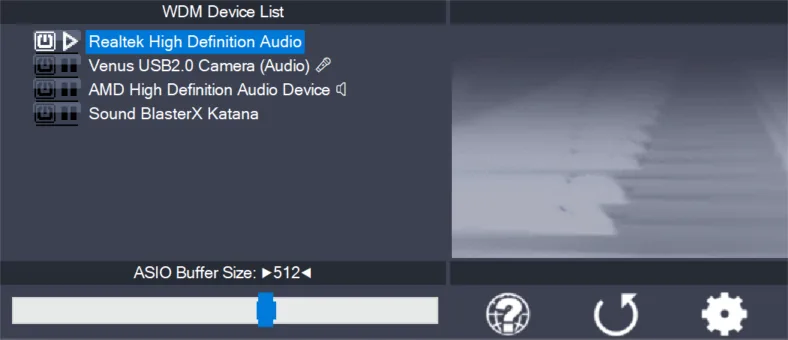
Offline Settings launches the driver control panel outside an active ASIO host. It lets you inspect available Windows WDM devices, expand endpoints, and prepare a basic device selection before opening a recording application. The panel looks familiar because it is the same configuration interface opened from a DAW.
The word offline does not mean that the driver works without Windows audio drivers, and it does not download settings from the internet. It simply means the control panel is running without an ASIO host controlling a live audio stream. Final behavior still needs to be tested in FL Studio, Reaper, Ableton Live, Cubase, or another ASIO application.
This distinction matters for the keyword ‘ASIO4ALL offline settings download.’ There is no separate official executable for that component in 2.22. Download the normal current installer, and the shortcut is included.
How to open Offline Settings
After installing ASIO4ALL 2.22, open the Windows Start menu and type ASIO4ALL. Choose the Offline Settings result. On a managed computer, Start menu shortcuts may be hidden by policy; in that case, open the panel from an ASIO-capable DAW instead of downloading an unknown shortcut from another website.
If search returns nothing, confirm that the current installer completed successfully. Version 2.22 always enables Offline Settings, while older installers treated it as a component choice. Reinstall from the official source if the shortcut is genuinely missing, then reopen the Start menu search.
- Install ASIO4ALL 2.22
Use the normal official installer; there is no separate Offline Settings package.
- Open Start
Press the Windows key and search for ASIO4ALL Offline Settings.
- Launch the shortcut
The control panel opens without requiring FL Studio or another host.
- Select the intended endpoints
Enable the output and input needed for the next session.
- Verify in the DAW
Open the host, select ASIO4ALL v2, and confirm the same device path works under load.
Configure devices before opening a DAW
Use simple view to select a device group or advanced view to expose individual WDM endpoints. A laptop may list speakers, headphones, microphone arrays, HDMI outputs, and Bluetooth profiles. Turn on only the devices required for the planned session. A smaller configuration is easier to verify and less likely to combine unrelated clocks.
You can set a starting buffer in the panel, but the DAW and live project determine whether it is stable. Use 256 samples as a reasonable starting point. After the host opens, test playback and recording. Lower the buffer for live monitoring only if the system remains free of clicks, or raise it for a complex mix.
A device shown as unavailable may be in use by another program even when Offline Settings is open. Close browsers, communication apps, media players, and other hosts. If the panel still cannot open it, check Windows Sound settings and the underlying hardware driver.
Why the component changed in version 2.22
The official 2.22 release notes say Offline Settings is now always enabled, which removes its component selection from the installer. This simplifies setup and explains why screenshots from earlier versions do not exactly match the current wizard.
The same release also removed the Debug option from the installer. Users sometimes enabled it because it sounded beneficial, then encountered access violation crash dumps triggered by poorly coded host applications. Neither change removes normal audio functionality.
When following a tutorial, check its version. Instructions that ask you to enable Offline Settings manually or recommend the Debug option are outdated for 2.22.
Use Offline Settings when you want to inspect endpoint names before opening a project, recover a simple device selection after a host crash, or compare which WDM devices Windows currently exposes. Do not treat it as a performance benchmark: the panel is not processing the real project, plugins, routing, or live input load. A configuration that looks available offline can still need a different buffer or fewer endpoints once the DAW begins streaming audio.
Verified against the official version 2.22 notes.
Offline Settings is preparation, not a separate download
If you searched for an ASIO4ALL Offline Settings download, use the normal official ASIO4ALL installer instead. Version 2.22 includes the shortcut automatically; the panel lets you prepare endpoint choices without a DAW, but it is not a second driver or an independent audio engine.
After preparing the devices, open the intended DAW, select ASIO4ALL v2, and test the same input and output under real project load. A device that looks available offline can still be unavailable when another application owns it or when the project uses a different sample rate.
ASIO4ALL Offline Settings workflow checklist
Use an ASIO4ALL Offline Settings workflow checklist when you need to inspect devices without launching a DAW. Open Offline Settings from the Start menu, switch to advanced view, and identify the exact WDM input and output names. Enable only the pair you plan to use, choose a moderate buffer, and close the panel. These choices provide a clean starting configuration, but they do not prove that a project will stream correctly.
Next, launch the DAW, select ASIO4ALL v2, and open the panel again from its audio preferences. Confirm that the same endpoints appear and run both playback and recording tests. If an endpoint becomes unavailable only after the host opens, another application, sample-rate conflict, or device permission is more likely than a missing installation. Repeat the ASIO4ALL Offline Settings workflow checklist after closing competing audio apps.
Version 2.22 always installs Offline Settings, so a missing Start-menu shortcut should prompt a normal official reinstall rather than a search for a separate settings download. The panel contains no independent audio engine and cannot reduce latency while the DAW is closed. Its best use is preparation, endpoint identification, and recovery to a simple baseline after confusing routing changes.
Before a session, compare the offline endpoint list with the names shown in Windows Sound settings. Device names can be similar when a laptop exposes speakers, headphones, digital output, and microphone arrays through one codec. Note which endpoint responds, then keep unused entries disabled. This prevents an apparently valid but silent output from being selected when the DAW starts.
- Offline availability does not guarantee stable streaming under project load.
- Record endpoint names before changing a multi-device configuration.
- Test final buffer and sample-rate choices inside the intended ASIO host.
ASIO4ALL Offline Settings FAQ
Is Offline Settings a separate download?
No. ASIO4ALL 2.22 installs Offline Settings automatically as part of the normal driver package.
Where is ASIO4ALL Offline Settings?
Search the Windows Start menu for ASIO4ALL Offline Settings after installing the current official driver.
Can I configure ASIO4ALL without a DAW?
You can prepare device choices in Offline Settings, but you should still test the configuration in the actual ASIO host.
Why does an old tutorial show an Offline Settings checkbox?
Older installers exposed it as an optional component. Version 2.22 always enables it and removes that choice.
Why is a device unavailable in Offline Settings?
Another application may be using it, the endpoint may be disabled, or the Windows device driver may have a problem. Close audio apps and check Windows Sound settings.
Does ASIO4ALL Offline Settings work on Windows 11?
Yes. It is a control-panel shortcut installed with the normal ASIO4ALL package. Confirm the final endpoint and buffer inside the DAW because Offline Settings does not test live project load.
Get ASIO4ALL 2.22, then return to this guide for setup.
The official download opens after a 15-second source check.